
Video Guide – Google Calendars
StaffSync can automatically update your Google Calendars with details of the jobs you have posted. You need to first create a Google Calendar you wish to post into, before following the steps below. A comprehensive video can be found at the bottom of the page.
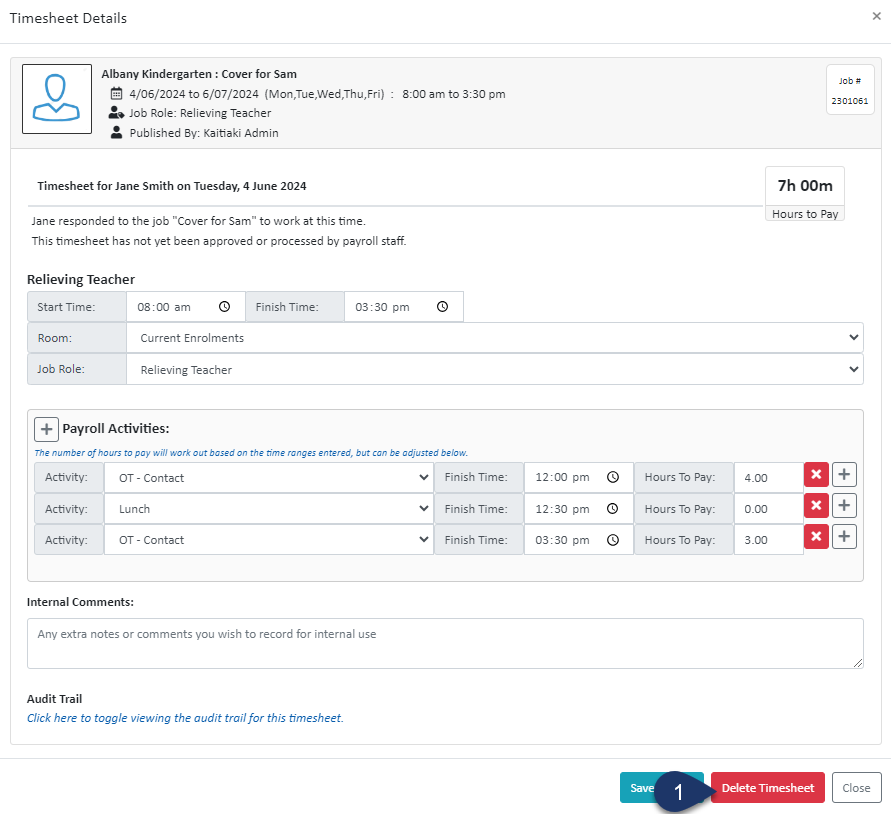
- Select ‘Our Profile’
- Select ‘Our Google/Apple Calendars’
- Select ‘New Google Calendar’
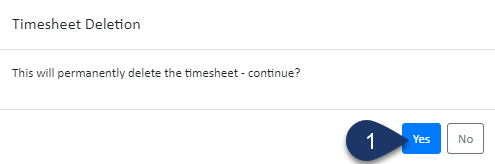
- Select ‘Take me to the Google Authorisation page’
- Click on the account associated with your desired Google calendar
- StaffSync needs permission to access your Google calendar (giving StaffSync permission allows StaffSync to make a one way push of job information into your Google calendar – no existing information on your calendar can be seen or extracted by StaffSync) – select ‘Allow’ if you wish to proceed

- Create a name for your calendar
- Select the calendar to synchronise with from the drop-down menu
! Important! – This is the calendar where the jobs will be posted into! - Click ‘Save Calendar Details’